
Choose which chats the assistant answers in

The assistant used to answer in every direct chat at once, with no way to pick. The app now has a “Where to answer” screen: switch chats on one by one, add the assistant to a group, and decide when it should join in.
Your assistant answers in your Telegram while you are busy
Try it freeThe choice used to be blunt: the assistant either answered everyone who wrote to you, or nobody. It could not see groups at all. If you wanted it to handle one recruiter and stay quiet in the family chat, there was nowhere to say so.
Where to find it
- Open the app and go to “Settings”.
- Scroll down to the “Account” section.
- Tap “Where to answer”.
The top of the screen says how many chats the assistant is answering in right now. Below that: the mode picker, switches by chat type, the add buttons and the list itself.
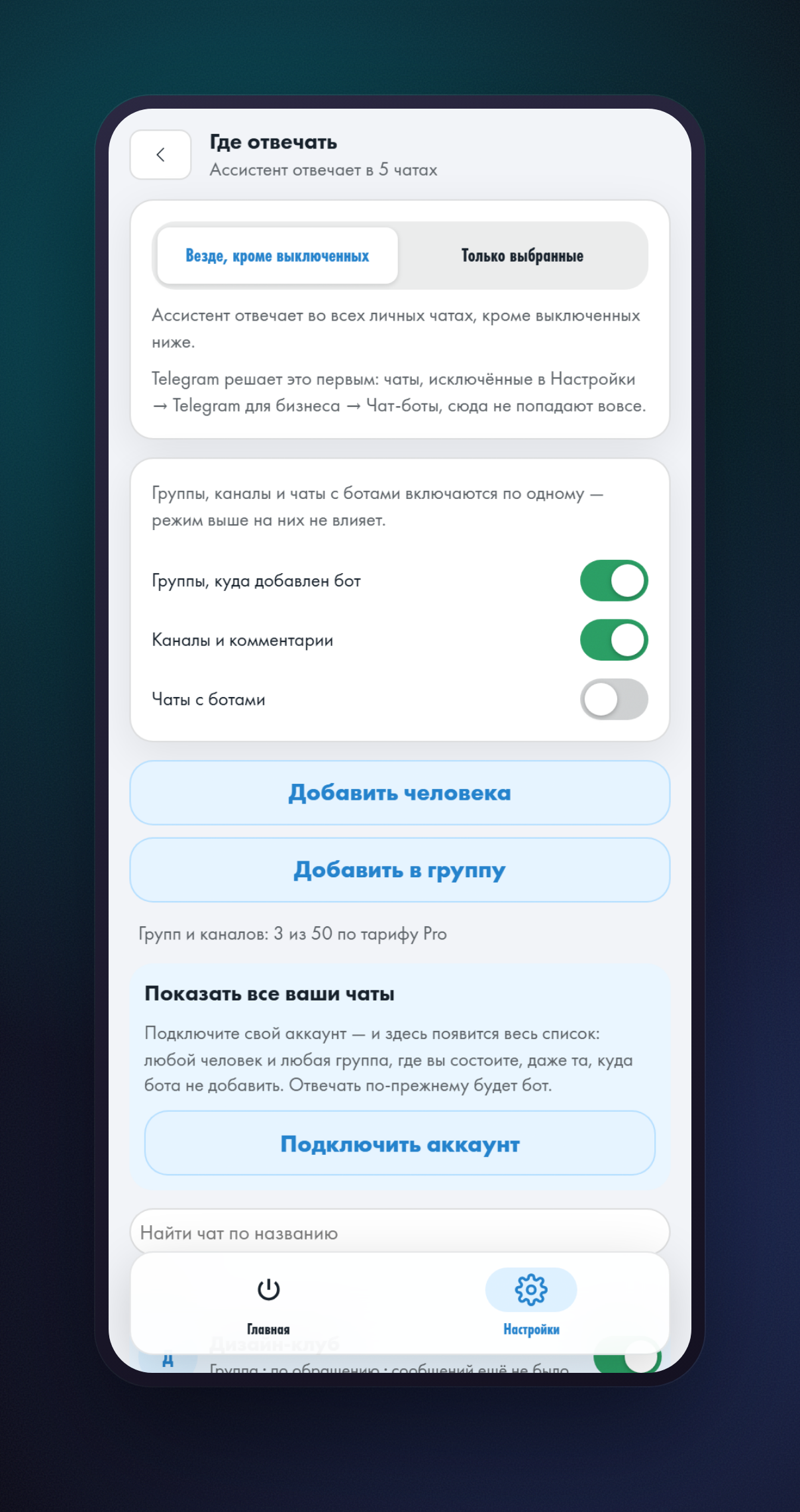
Whose name the replies carry
This is worth understanding first, because it is the hardest to remember and the easiest to mix up. In a direct chat the assistant answers in your name. In a group where you added the bot, the reply is signed by the bot — that is how Telegram works: it cannot speak as you in a place where it is an ordinary member.
It still answers on your behalf, though. The signature is one thing; whose assistant it is quite another. In a group it uses your knowledge base, your reply rules and your calendar. To the members of the chat it is a bot; to you it is your own assistant, just wearing somebody else's name on the avatar.
| How it was connected | Where it answers | In whose name |
|---|---|---|
| Telegram Business | direct chats | yours |
| Connected account (QR code login) | direct chats | yours |
| You added the bot to a group | the group and channel comments | the bot's |
| Same group, signature switched to you | the same group | yours |
| A group from the connected account's chats | the group and channel comments | yours |
| You added your own bot to a group | the group and channel comments | your bot's |
The signature is switched in the chat's card — the “Who signs the replies” row, with three options: “Our bot”, “Your bot” and “You”. There is no need to remove the bot from the group for this; it stays a member and simply goes quiet. Only one of them ever answers, otherwise every question would get two replies.
Your own bot instead of ours
If there should be no stranger's name under the replies at all, create a bot of your own. Then it answers in the group — with its own name and avatar — and nobody in the chat learns about HeadHack. The knowledge base, calendar and reply rules stay the same: only the signature changes. How to switch it on, step by step, is in the article about connecting your own bot.
Whose assistant answers in a group
The one who added the bot. A group can contain any number of people with an assistant, but only one of them answers — whoever brought the bot in first. The others will not be able to add it there any more: a group has one owner, otherwise every question would draw several different answers.
Right after the bot is added you get a direct message, and the group appears in the “Where to answer” list already switched on. If there was no message and the group is not in the list, the bot was most likely added on the group's behalf, by a hidden administrator. In that case Telegram does not tell us who it was.
- If you are listed as an administrator of the group, the assistant finds you by itself — there is nothing to do.
- If several administrators have an assistant, the group appears in each of their lists switched off. Whoever switches it on first owns it.
- If all the administrators are hidden, write the bot's name in the group from your own account: that message binds the group to you.
Two modes for direct chats
“Everywhere except the ones switched off” — the assistant answers everyone who writes to you, and you mute the chats you do not want one by one. This is how it worked before, and it stays the default: nothing changes on its own after the update.
“Only the selected ones” — the assistant stays quiet everywhere except the chats you switched on. Useful when you have many conversations and want to trust the assistant with two or three.
Adding a specific person
The list shows the people who have already written to you. More often you want the opposite: to prepare for a conversation before the first message. That is what the “Add a person” button is for.
- Tap “Add a person” — the app closes and you land in the chat with the bot.
- Tap the “Choose a person” button under the input field.
- Pick the ones you need — up to ten at a time.
- Go back to the app: their chats are already in the list and switched on.
The other person has nothing to do for this: they need neither to write to you nor to be in your contacts. As soon as they write, the assistant answers from the very first message.
Adding it to a group
The “Add to a group” button opens the group picker inside Telegram. There is nothing to configure afterwards: as soon as the assistant is added, the group appears in the list already switched on and you get a direct message. You can also add it the ordinary way, through the group's own settings — it makes no difference.
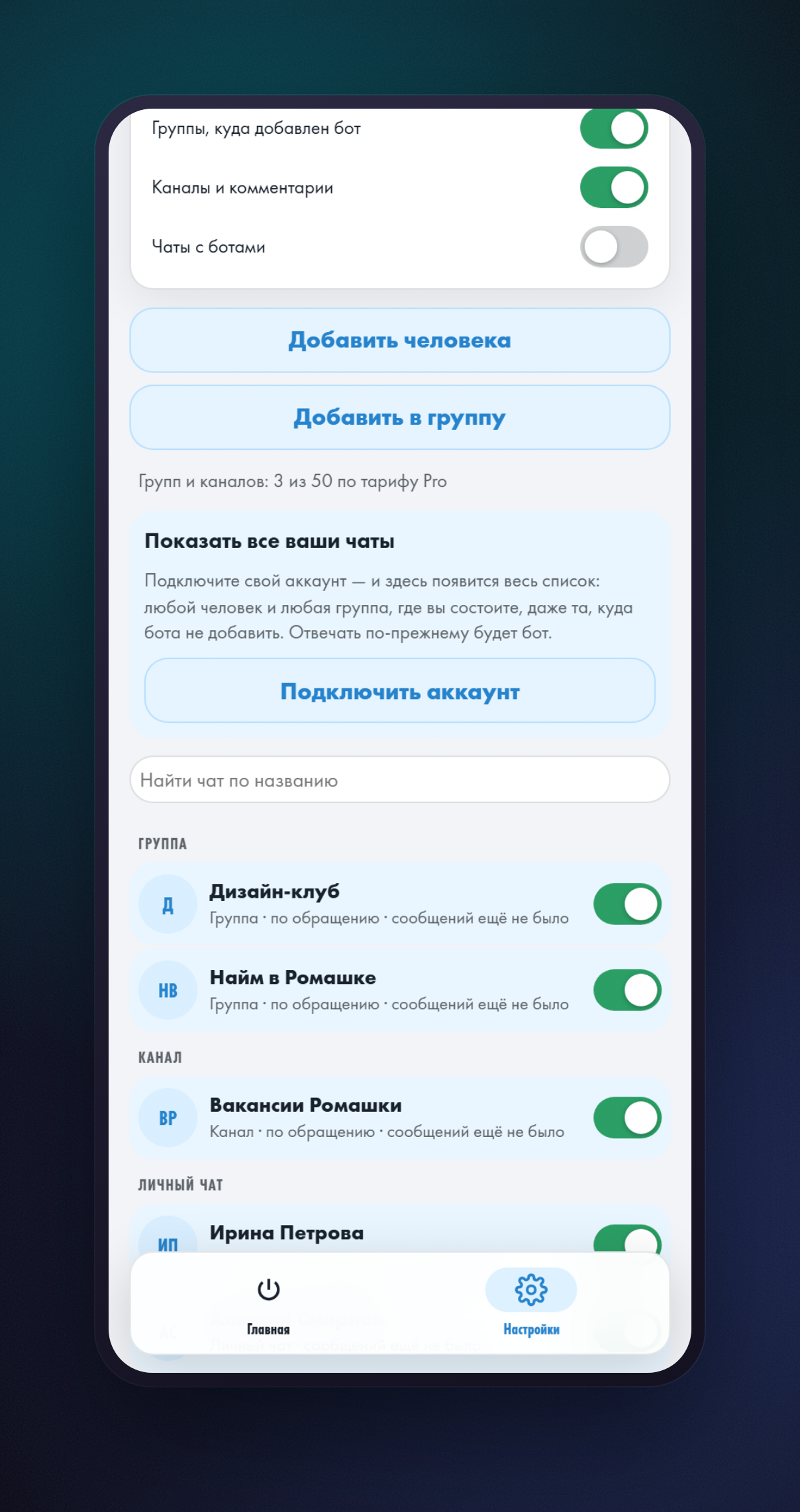
When the assistant joins the conversation
Tap the row with the group to open its card. That is where you choose the moment the assistant should answer.
| Mode | When it answers |
|---|---|
| When addressed | Only if it was mentioned in a message or somebody replied to one of its own. This is the default. |
| By topic | When one of your words appears in a message. You write the list yourself, one word or phrase per line. |
| Everything | Any question on the subject — the assistant reads the whole chat and decides for itself when to reply. |
Topics are matched by the sense of the word inside a message: the topic “salary” fires on “what are your salary expectations” too. Case makes no difference. The assistant always answers a direct address, even if no topic matched.
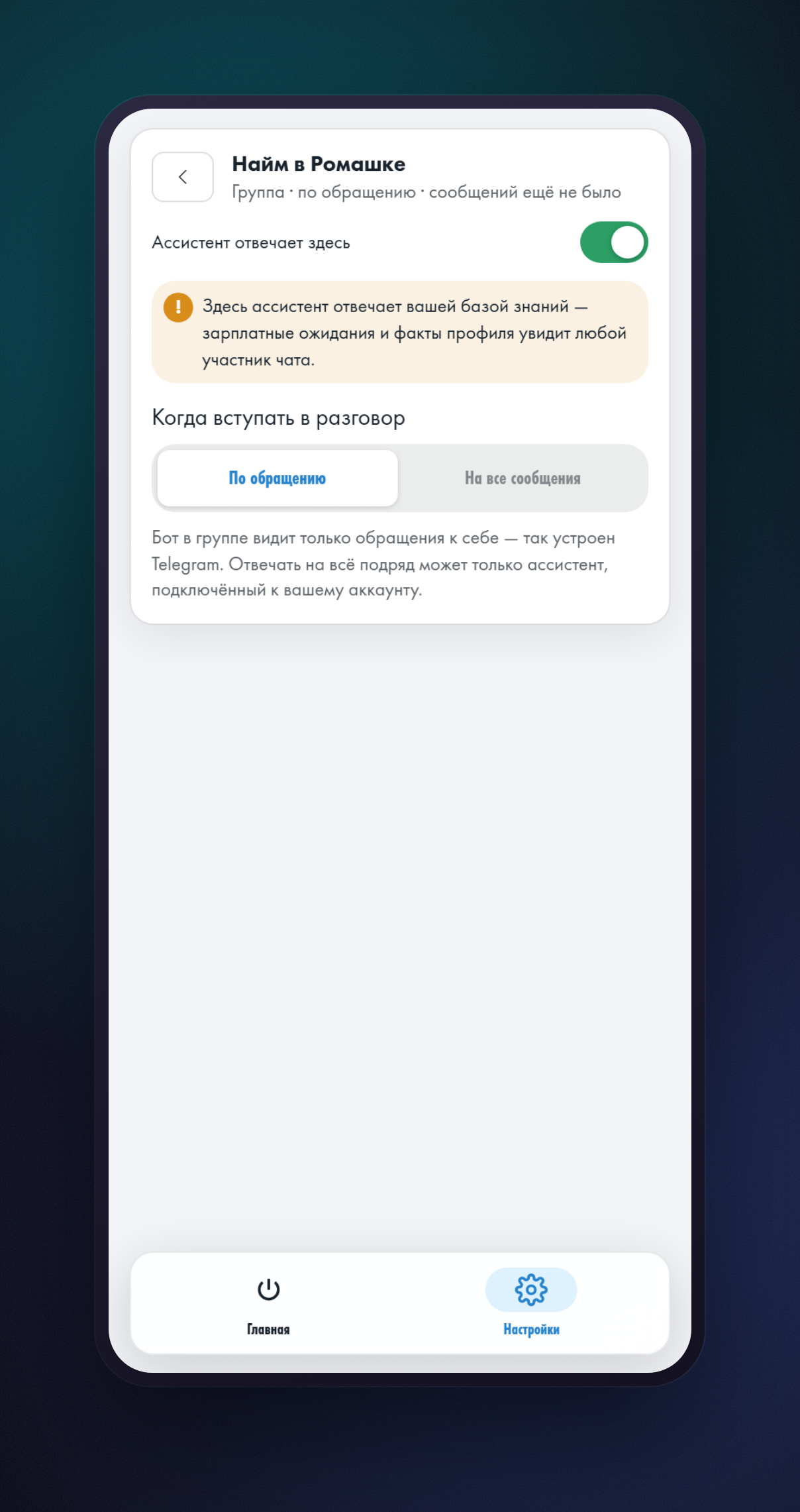
Channels and comments
There is nobody to answer on a channel post — that is not a conversation. The comments are another matter: they live in a separate discussion group attached to the channel. Add the assistant there and it will answer in the comments exactly as it does in an ordinary group.
How many groups you can connect
Each plan allows a limited number of groups and channels. The reason is not storage but cost: one lively group costs more than a month of direct messages.
| Plan | Groups and channels |
|---|---|
| Free | 1 |
| Go | up to 5 |
| Plus | up to 15 |
| Pro | up to 50 |
Direct chats do not count towards that number; you can switch on as many as you like. The counter under the buttons shows how many slots are taken. If the groups run out, switch off one you do not need — a new one takes the freed slot immediately.
Showing all of your chats
The list only holds the chats we know about: people who have written to you, and groups you added the assistant to. Groups you are a member of but cannot add bots to are not there — and will not be.
Connecting your account fixes that: all of your chats then appear in the list and you can choose from them. The “Connect account” button is on the same screen; the login goes by QR code and needs no Telegram Premium, as described in connecting without Premium.
Common questions
Whose name does the assistant answer under in a group?
By default the bot's: it is an ordinary member there, and Telegram will not let it sign as you. It still answers from your knowledge base and by your rules — the assistant is yours, only the signature is somebody else's. If you want your own name, open the group's card and switch “Who signs the replies” to “You”. That needs a connected account: only it can speak for you. There is no need to remove the bot from the group, it simply goes quiet.
What if somebody else added the bot to the group?
Then the group belongs to whoever added it, and their assistant answers. A group has one owner: a second person will not be able to add the bot there. If a hidden administrator brought the bot in and the group did not appear in anybody's list, write the bot's name in it from your own account — that message binds it to you.
Can I add the assistant to a chat with one person?
Telegram does not allow adding a bot to a direct chat: there are only two participants. It is not needed either — the assistant sees your direct chats through the Telegram Business connection. All you have to do is switch the chat on in the “Where to answer” list, or pick the person with the “Add a person” button.
Will the assistant start talking in a group on its own?
No. A group is only switched on by hand, and by default the assistant stays quiet there until somebody addresses it: mentions it or replies to one of its messages.
What happens to my settings after the update?
Nothing changes. The default mode is “Everywhere except the ones switched off”, which is exactly the behaviour you had before. Groups and channels are switched off until you add them yourself.
Why is a chat switched on but there are no replies?
Three usual reasons. First: nobody has written in that chat yet — such a row is marked “no messages yet”. Second: it is a group set to “When addressed”, and nobody has addressed the assistant. Third: the chat is excluded in Telegram's own settings, under “Telegram Business → Chatbots”. Telegram decides that before we do, and chats excluded there never reach the assistant at all.
If your assistant is not set up yet, start with the Telegram auto-reply guide — it walks through connecting and the knowledge base step by step. The assistant itself lives at @Head_Hack_bot.
Connect the assistant to your Telegram
Open the botRead next
- Как запускать навыки HeadHack Duo через @Уже доступно. Введите @ в начале поля, чтобы выбрать доступный навык. Готовые, собственные и установленные навыки показываются в одной подсказке, а выбор заполняет черновик.
- HeadHack Duo в браузере и на телефонеУже доступно. HeadHack Duo подстраивается под широкое окно и экран телефона: навигация не перекрывает переписку, а черновик сохраняется при переходах.