
One button turns the assistant on in Telegram

Working out whether the assistant was running used to mean hunting for the answer among the settings. Now it is the first thing you see when the app opens, and one tap turns it on or off.
Your assistant answers in your Telegram while you are busy
Try it freeWhen you open the app you usually want to know one thing: is the assistant answering messages or not. That question used to be answered by the same screen that held every setting at once. We have split the two: the state now has its own screen, and the settings open when you actually want to change something.
The home screen
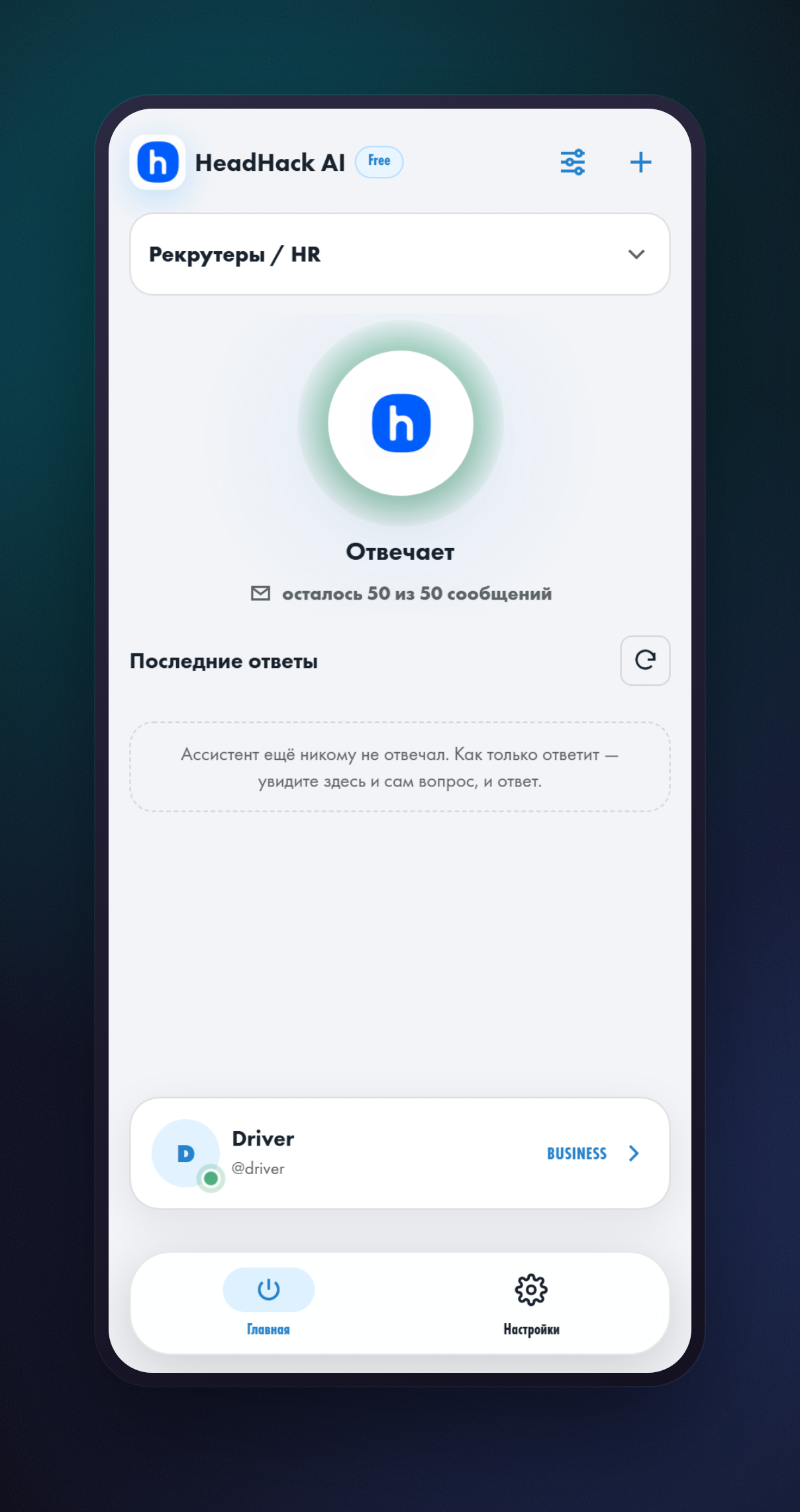
The circle is not a picture but a switch. Tap it and the assistant stops answering; tap it again and it starts. The profile it answers with is changed at the top, without going into the settings.
The settings are gathered in one place
There are now two tabs at the bottom: “Home” and “Settings”. Everything you set once lives in the second one: what the assistant knows, what tone it uses, when it offers a meeting, plus your plan, statistics and support.
Last time we broke those settings out onto separate screens so you would not have to scroll one long list — the assistant's settings got simpler. Now you do not even scroll past them: they are not on the home screen at all.
The things changed most often
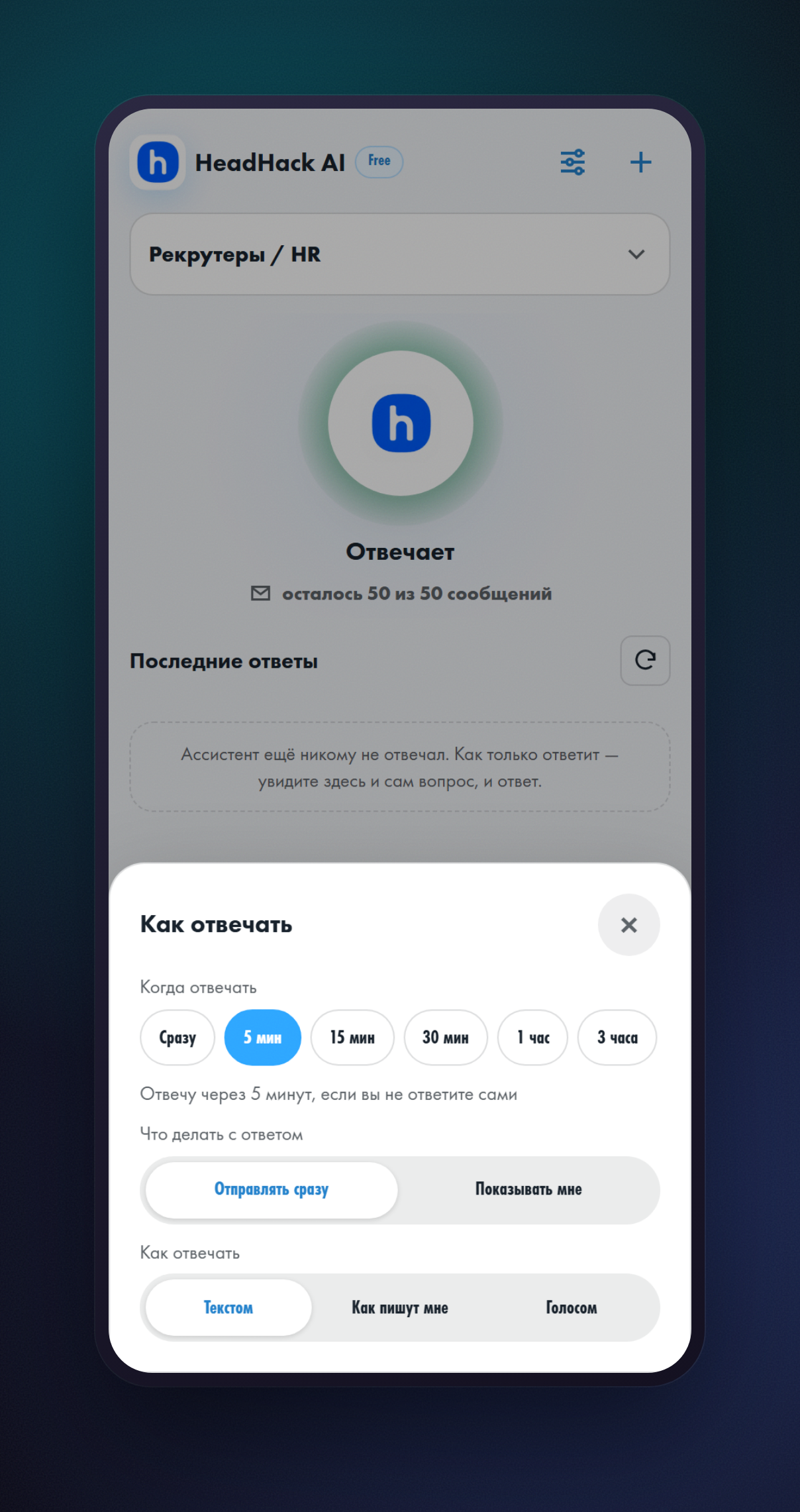
Some settings get touched not once but as the day goes: in the morning let it answer by itself, in the evening let it show you first. Those open from the button in the top right corner of the home screen.
You can give yourself time to answer
The first row in that list is new. The assistant used to answer at once. Now, next to “Immediately”, there are delays: 5 minutes, 15, 30, an hour and three hours. Pick one and the message simply waits for you that long.
Answer yourself and the assistant stays quiet: it can see you have already written to the other person. Do not answer, and the reply goes out on its own once the delay runs out.
Connecting is a separate step now
Until the account is connected, the circle in the middle leads to the connection screen. The app picks the method itself, based on whether you have Telegram Premium.
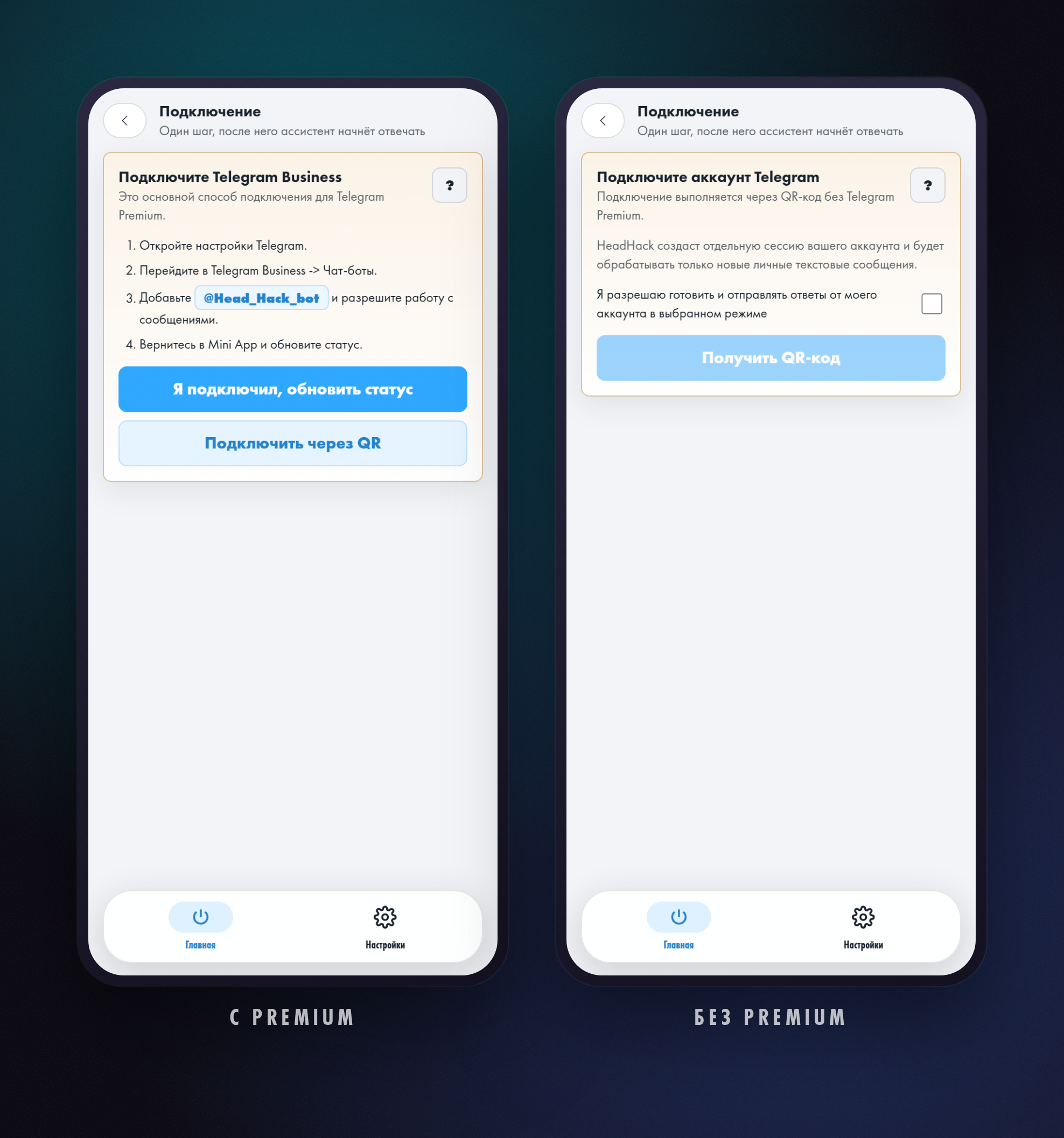
With Premium the assistant is added as a chatbot in the Telegram Business settings — that is where @Head_Hack_bot goes. Without Premium the connection runs through a QR code, scanned with your own Telegram. We covered the second route in detail: the assistant without Telegram Premium.
Common questions
How do I switch the assistant off for a while?
Tap the circle in the middle of the home screen. It goes dark and new messages stop getting replies. Tap it again and the assistant starts answering once more.
Will the assistant reply if I have already answered?
No. If you set a delay and wrote to the other person first, the assistant stays quiet.
Where are the knowledge base and the other settings now?
In the “Settings” tab at the bottom of the screen. Your plan, statistics and support are there too.
Connect the assistant to your Telegram
Open the botRead next
- Как запускать навыки HeadHack Duo через @Уже доступно. Введите @ в начале поля, чтобы выбрать доступный навык. Готовые, собственные и установленные навыки показываются в одной подсказке, а выбор заполняет черновик.
- HeadHack Duo в браузере и на телефонеУже доступно. HeadHack Duo подстраивается под широкое окно и экран телефона: навигация не перекрывает переписку, а черновик сохраняется при переходах.