
The new assistant mini app — simpler and faster

We rebuilt the app from scratch to make it a pleasure to use. State in one place, settings in another, a living capsule instead of a toggle, and the things you change every day one button away.
Your assistant answers in your Telegram while you are busy
Try it freeSetting the assistant up was hard work. Every field — who it is, what it answers to common questions, what it knows about you, what tone it speaks in — ran one after another down a single screen, with strips of ready-made templates in between. Reaching the bottom field meant scrolling through five screens.
Worse, every field looked equally important. The crucial one — who the assistant introduces itself as, without which it does not work at all — sat next to a fine-tuning option that one person in twenty needs, in the same size type. There was no way to tell where to start.
So we rebuilt the app entirely. Not shuffled the buttons around, but decided again what you see first, what opens on a tap and how the screen answers each action. It is easier to start, quicker to reach what you need — and simply nicer to open.
It all starts with one tap
The app opens on state, not on settings. In the middle is a living capsule: coloured vapour shifts inside it, and you can see at a glance that the assistant is running. Under the capsule it says plainly: “Answering”, “Paused” or “Not connected”.
The capsule is the switch. Tap it and the assistant pauses, the vapour fades and “tap to switch on” appears underneath. Tap again and it says “Answering” once more. There is no need to go into any settings for it. And the vapour really is alive: it reacts even to tilting and shaking the phone.
Under the capsule you can see how many messages your plan has left this month. At the bottom is your Telegram account card: photo, name and how it is connected.
Messages, all in one section
Checking what the assistant had answered used to mean going into Telegram and opening conversations one by one. Now the messages icon on the home screen carries a counter: how many replies went out without you and how many drafts are waiting. Inside are the “Drafts” and “History” tabs, any conversation opens in full, and from a conversation page there are “Fix the replies” and “To the knowledge base” buttons. We covered it separately: drafts are approved right in the app.
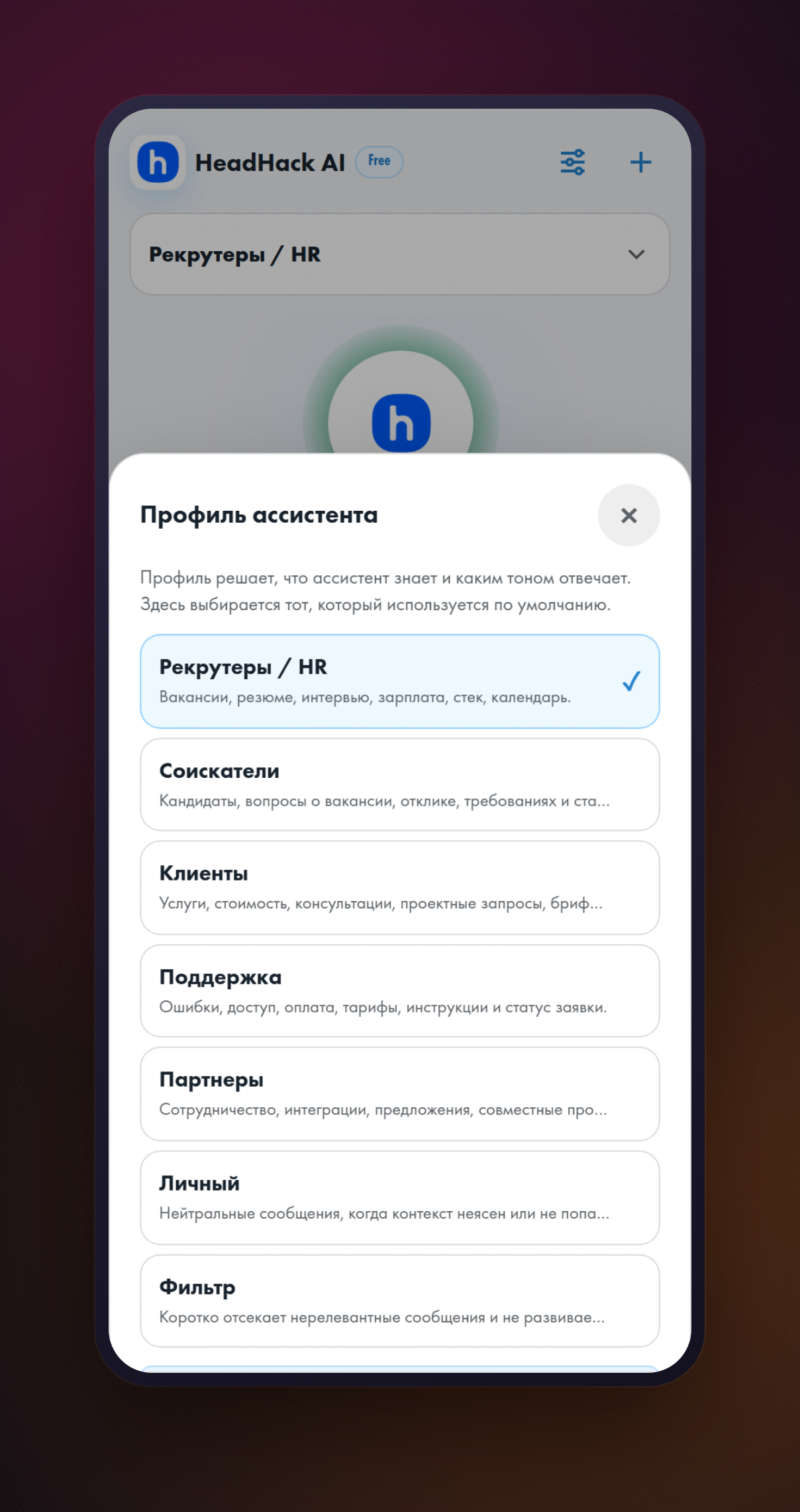
The profile is chosen at the top
The assistant can have several profiles: one for clients, another for recruiters, a third for personal messages. The one it answers with by default is now chosen right on the home screen.
Settings as a list, the way Telegram does it
There are now two tabs at the bottom of the app: “Home” and “Settings”. Everything you set once lives in the second. Instead of five long fields in a row there is a short list: one row per setting, with what is currently in it shown alongside — the start of the text, “2 facts”, “5 topics”.
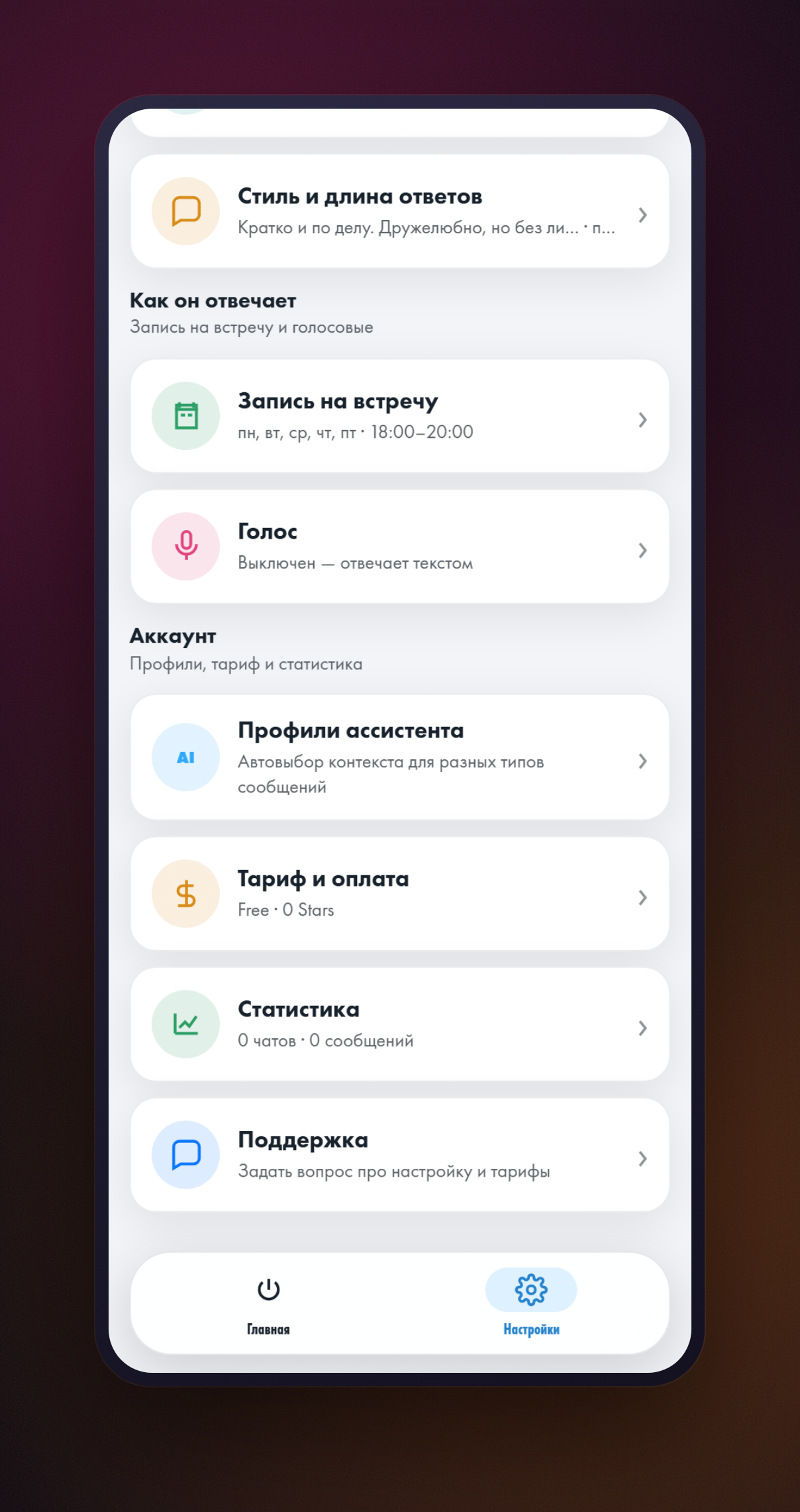
The list is split in two. “What the assistant knows” — what it builds answers from: the prompt, the knowledge base, facts about you, topics, style. “How it answers” — meeting booking and voice. All of that used to sit in one heap, and it was unclear what affected what.
Tap a row and the setting opens on its own screen, with a full-width field, ready-made templates and a hint. It is the same arrangement as in Telegram's own settings, so there is nothing to get used to.
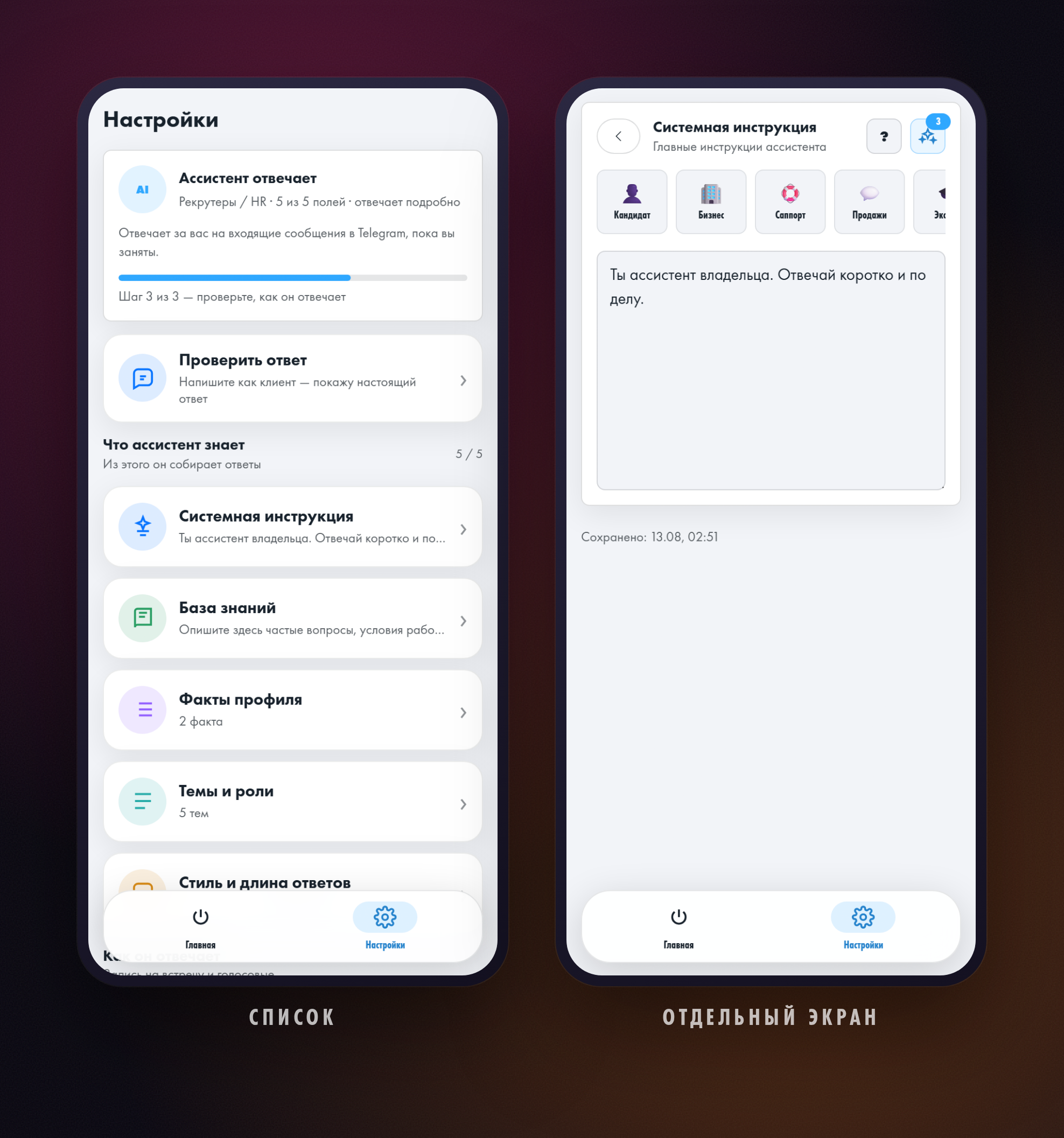
At the top of the list is a readiness bar. There are only three steps: connect Telegram, describe the assistant, and check how it answers. The hint names the next one: “Step 3 of 3 — check how it answers”.
The bar used to count filled-in fields, and a full stop in the prompt scored the same as a considered text. Five out of five could be reached with anything at all. Now every step is a real event, and editing the knowledge base resets the third one: what needs checking is what the assistant answers now.
You can test a reply before going live
The third readiness step is checking how the assistant answers, and it does not need a real person on the other end. On the “Test a reply” screen you write a message the way a client would, tap “Show the reply” — and a couple of seconds later you see what the assistant would send in your name. Nothing reaches anyone in the meantime.
Plan, statistics and support are there too
This used to be a separate “Profile” tab, and it was never obvious how it differed from the settings. Now it is all in one place: under the reply settings comes the “Account” section — assistant profiles, plan and payment, statistics and support.
The things changed every day
Some settings get touched not once but as the day goes: in the morning let it answer by itself, in the evening let it show you first. Those open from the button in the top right corner of the home screen and are called “How to reply”.
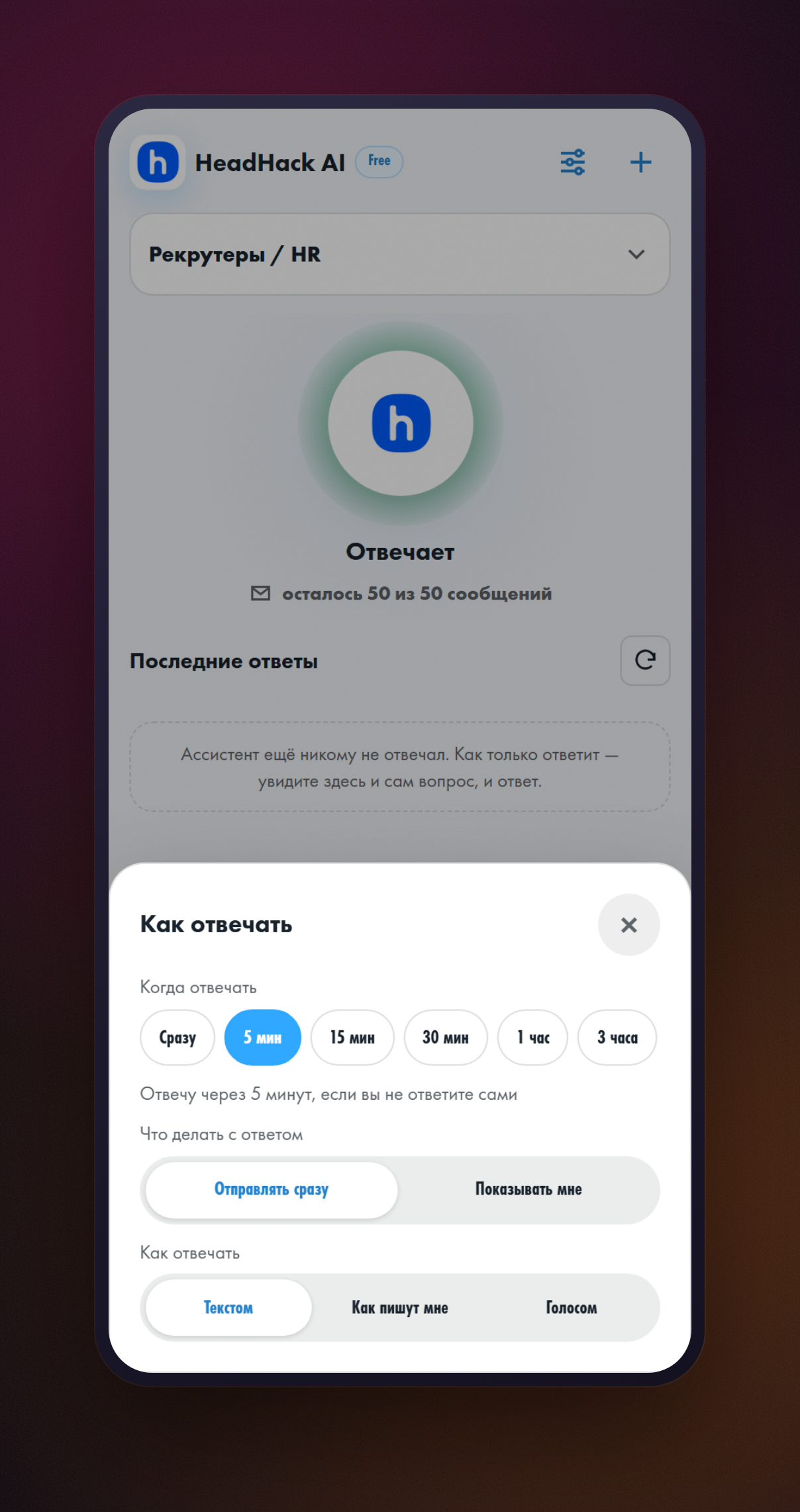
A finished reply can be sent straight away or shown to you first. The assistant can answer with text, with voice, or in whichever way the other person wrote.
You can give yourself time to answer
The first row in that list is new. The assistant used to answer at once. Now, next to “Immediately”, there are delays: 5 minutes, 15, 30, an hour and three hours. Pick one and the message simply waits for you, with a line under the buttons spelling out what will happen: “I will reply in 5 minutes if you do not answer yourself”.
Answer yourself and the assistant stays quiet: it can see you have already written to the other person. Do not answer, and the reply goes out on its own once the delay runs out.
Meeting booking, with an example
The “Meeting booking” screen now starts with an example: how the assistant will answer when somebody asks about a meeting, and which free slots it will offer. Below that you mark the days and hours you are free — and those are the times the assistant offers.
Reply length moved in with tone
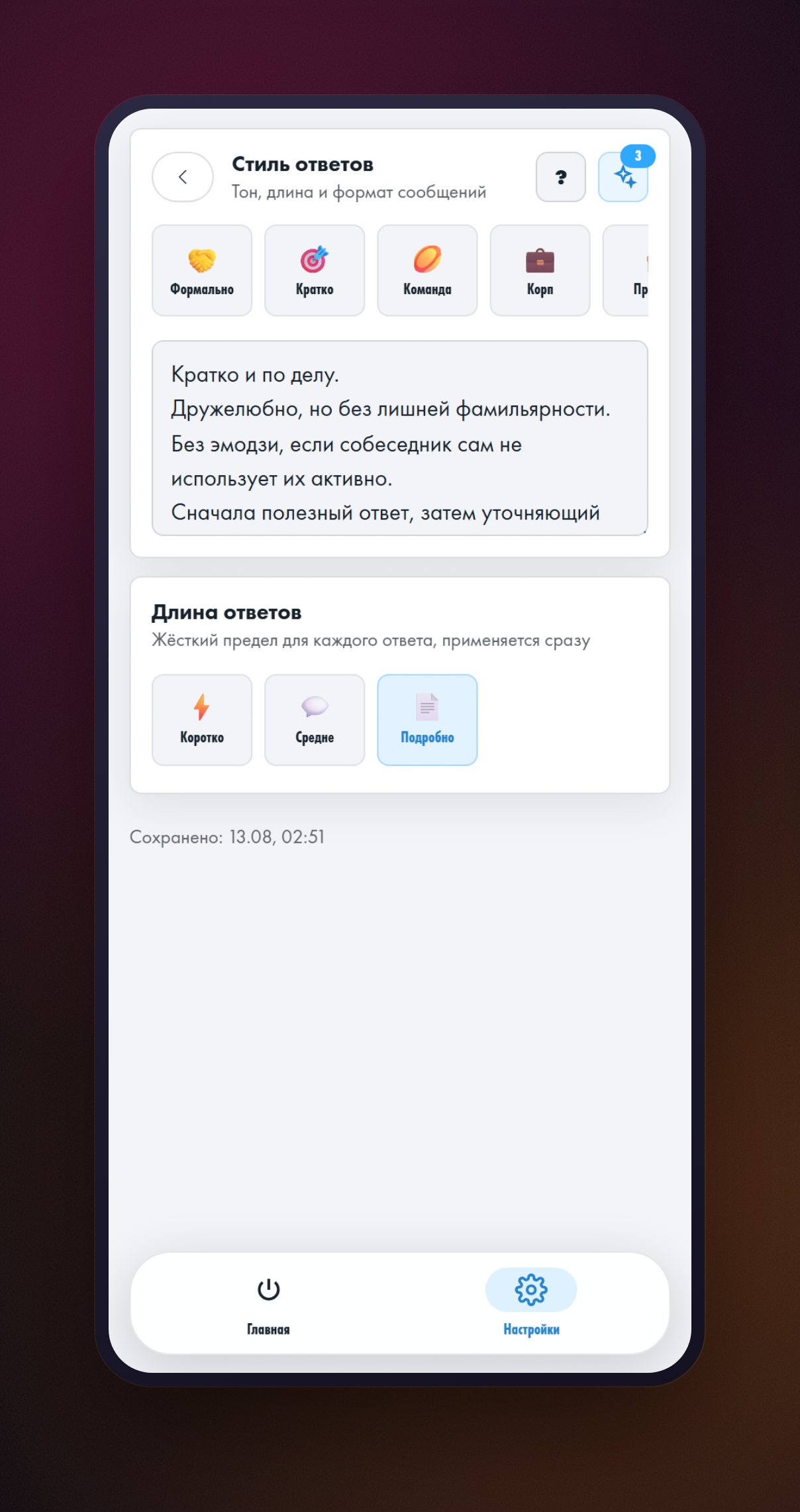
Reply length was a setting of its own, even though the tone setting right next to it also mentioned length. People could not tell what affected what. Now it is one screen: at the top you describe how the assistant should speak, below you choose how much detail it gives.
Connecting is a separate step now
The demand to connect Telegram used to hang over the settings and got in the way of people who had already connected. Now connecting has its own screen, and the same capsule on the home screen leads to it while the assistant is not connected.
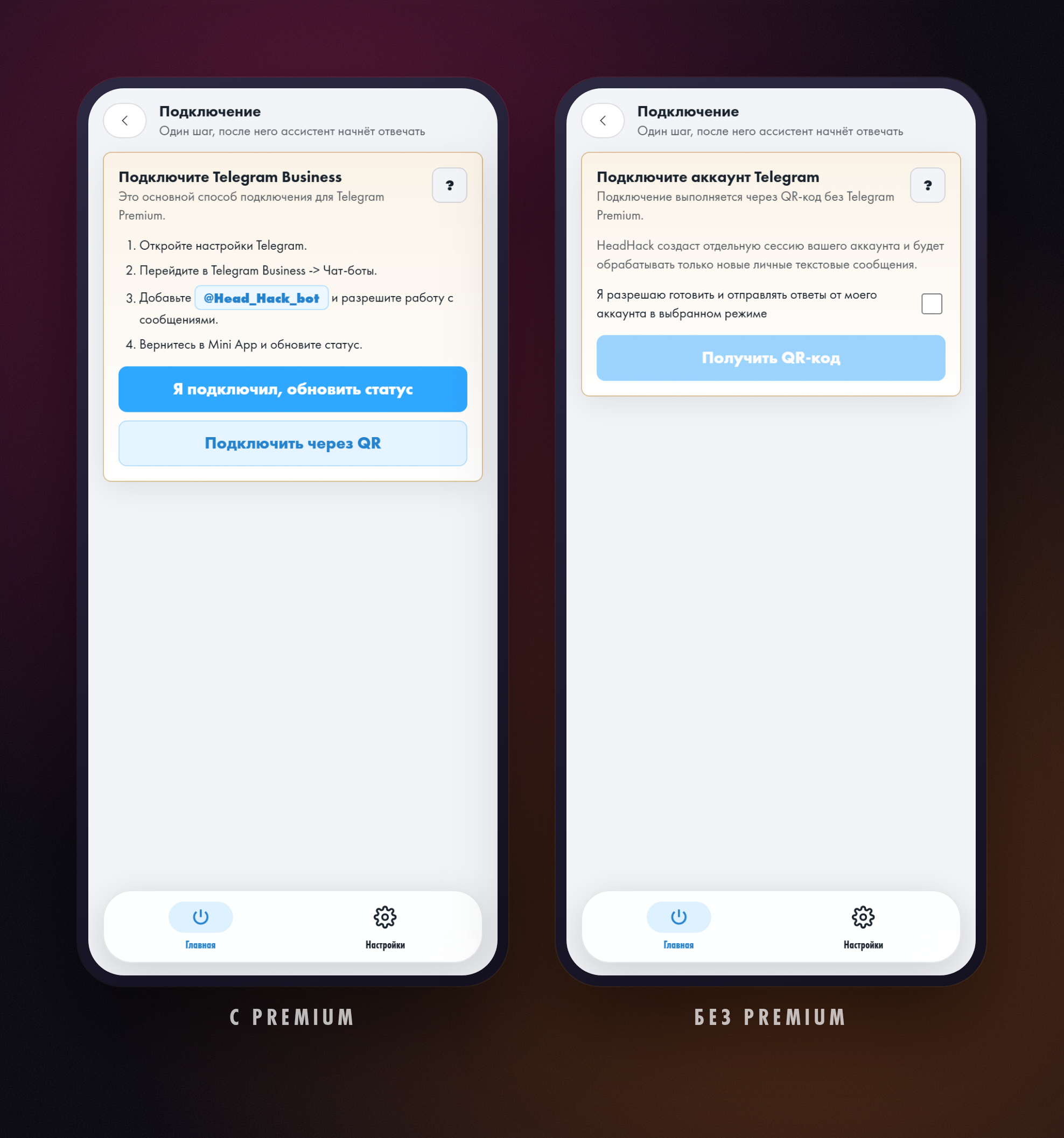
The app picks the method itself. With Telegram Premium the assistant is added as a chatbot in the Telegram Business settings — that is where @Head_Hack_bot goes. Without Premium the connection runs through a QR code, scanned with your own Telegram. We covered the second route in detail: the assistant without Telegram Premium.
The Save button is gone
You used to be able to fill everything in, close the app and find that nothing had been saved: the button was down at the bottom and you never scrolled to it. Now the assistant remembers changes by itself, a second after you stop typing. Under the field you can see when everything was saved.
- Leave the screen right after an edit — it is saved anyway.
- Minimise the app — also saved.
- If something goes wrong, a red line appears with a “Retry” button. Nothing is ever lost silently.
Small things that also got in the way
- On iPhones the app used to close by itself: the phone mistook ordinary scrolling for the “close” gesture. Now only the content scrolls and the window stays put.
- The app used to pick up your Telegram's theme, and in dark mode half the screen stayed light. Now the look is the same for everyone.
- After an update the app sometimes showed yesterday's version until you restarted it. It no longer does.
You can start from a ready-made role
A newcomer is now offered a ready-made role: pick a fitting one and the settings fill themselves in, ready for you to test a reply. The first step used to be the personality test, which meant answering questions before seeing a single reply. The test has not gone anywhere, but it is now a way to refine rather than a compulsory entrance. We wrote about it separately: how the assistant picks up your way of talking.
What to write in the fields themselves is covered in detail in two guides: who the assistant introduces itself as and answers to common questions. And testing before launch helps you check the result before switching it on.
Common questions
How do I switch the assistant on or off?
Tap the capsule in the middle of the home screen. The assistant pauses, the vapour inside fades and “tap to switch on” appears underneath. One more tap and it is answering again.
Will the assistant reply if I have already answered?
No. If you set a delay and wrote to the other person first, the assistant stays quiet.
Where is the Save button?
There is not one any more — everything saves itself a second after you stop typing, and also when you leave the screen or minimise the app. A button only appears if a save failed, and it says “Retry”.
Where did the “Profile” tab go?
Its contents moved to the bottom of the “Settings” tab, into the “Account” section. Assistant profiles, plan and payment, statistics and support are all there.
Why are the settings fields not tappable?
Until Telegram is connected the settings are disabled — the assistant has nobody to answer as. The screen says so, and you can go to the connection from there. It takes a couple of minutes.
Where did the reply length setting go?
It is now on the same screen as reply tone. They used to be two separate settings, and it was unclear which one took priority.
Are my old settings still there?
All of them. Only the order in which the settings are shown has changed. There is nothing to fill in again.
You can see how it looks right now — open @Head_Hack_bot.
Connect the assistant to your Telegram
Open the botRead next
- Как запускать навыки HeadHack Duo через @Уже доступно. Введите @ в начале поля, чтобы выбрать доступный навык. Готовые, собственные и установленные навыки показываются в одной подсказке, а выбор заполняет черновик.
- HeadHack Duo в браузере и на телефонеУже доступно. HeadHack Duo подстраивается под широкое окно и экран телефона: навигация не перекрывает переписку, а черновик сохраняется при переходах.